Screenshots from a WebGL viewer get the job done for presentations,
but journals and posters deserve better. ggsegray() renders
brain atlases into an rgl scene — the same mesh data, the same colour
pipeline, just a different backend. Once the scene is in rgl,
rayshader’s path tracer handles realistic lighting, soft shadows, and
depth of field.
This vignette walks through the full workflow: from a basic rgl scene to a polished ray-traced figure.
Setup
rgl provides the 3D scene, rayshader provides the ray tracer. Both are optional dependencies — ggseg3d checks for them at runtime.
A first render
ggsegray() mirrors the ggseg3d() API for
atlas, hemisphere, and colour mapping. The difference: instead of an
htmlwidget, you get an rgl window. Camera, background, glass brain
overlays — all of that comes through the same pipe functions you already
know from the widget side.
ggsegray(atlas = dk(), hemisphere = "left") |>
  pan_camera("left lateral")

rgl::snapshot3d("img/ray-first.png")
rgl::close3d()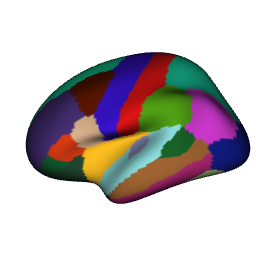
The rgl window is interactive too — rotate with the mouse, zoom with
the scroll wheel. The camera presets match the ones from
pan_camera(): “left lateral”, “right medial”, “left
superior”, and so on.
Mapping data
Data mapping works identically to ggseg3d(). Provide a
data frame with a region column, point
colour_by at a numeric or categorical variable, and
optionally set a custom palette:
ggsegray(
  .data = some_data,
  atlas = dk(),
  colour_by = "p",
  hemisphere = "left",
  palette = c("forestgreen" = 0, "white" = 0.05, "firebrick" = 1)
) |>
  pan_camera("left lateral")

rgl::snapshot3d("img/ray-data.png")
rgl::close3d()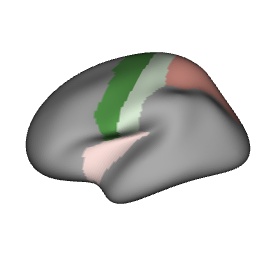
Quick snapshots with rgl
Before reaching for the ray tracer, grab a fast screenshot with
rgl::snapshot3d():
p <- ggsegray(atlas = dk(), hemisphere = "left") |>
  pan_camera("left lateral")

rgl::snapshot3d("my_brain.png")
rgl::close3d()
No ray tracing, no wait. When the angle and lighting look right,
switch to render_highquality() for the final version.
Ray-traced output
Build the scene with ggsegray() and pipe functions, then
call render_highquality():
ggsegray(
  .data = some_data,
  atlas = dk(),
  colour_by = "p",
  hemisphere = "left"
) |>
  pan_camera("left lateral") |>
  set_background("white")

rayshader::render_highquality(
  filename = "raytrace.png",
  samples = 64,
  width = 600,
  height = 450
)
rgl::close3d()
Higher samples means less noise and longer render times.
For drafts, 64-128 is fine. For final figures, 256-512 produces clean
results.
Controlling the camera
Camera presets map to the same positions as the Three.js viewer. Pipe
pan_camera() after ggsegray():
ggsegray(atlas = dk(), hemisphere = "left") |>
  pan_camera("left lateral")

rgl::snapshot3d("lateral.png")
rgl::close3d()
ggsegray(atlas = dk(), hemisphere = "left") |>
  pan_camera("left medial")

rgl::snapshot3d("medial.png")
rgl::close3d()
ggsegray(atlas = dk(), hemisphere = "right") |>
  pan_camera("right superior")

rgl::snapshot3d("superior.png")
rgl::close3d()
For a custom viewpoint, pass a numeric vector
c(x, y, z):
ggsegray(atlas = dk(), hemisphere = "left") |>
  pan_camera(c(-300, 100, 150))

rgl::snapshot3d("custom_angle.png")
rgl::close3d()
Once the rgl window is open, rgl::view3d() and
rgl::observer3d() let you fine-tune interactively before
rendering.
Lighting
Rayshader controls lighting through
render_highquality(). The light_direction and
light_altitude parameters set the angle and elevation of
the light source:
ggsegray(atlas = dk(), hemisphere = "left") |>
  pan_camera("left lateral")

rayshader::render_highquality(
  filename = "lighting.png",
  samples = 64,
  light_direction = 90,
  light_altitude = 30
)
rgl::close3d()
For richer lighting setups — multiple light sources, coloured lights, area lights — pass custom scene elements:
ggsegray(atlas = dk(), hemisphere = "left") |>
  pan_camera("left lateral")

rayshader::render_highquality(
  filename = "custom_light.png",
  samples = 64,
  width = 600,
  height = 450,
  light = FALSE,
  scene_elements = rayrender::sphere(
    x = -300, y = 300, z = 200,
    radius = 50,
    material = rayrender::light(intensity = 80, color = "white")
  ),
  interactive = FALSE
)
rgl::close3d()
Background colour
White backgrounds work for most journals. For posters or slides, dark backgrounds make the brain pop:
ggsegray(atlas = dk(), hemisphere = "left") |>
  pan_camera("left lateral") |>
  set_background("black")

rgl::snapshot3d("img/ray-dark.png")
rgl::close3d()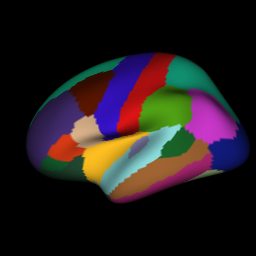
Glass brain overlay
Subcortical structures float in space without context. A translucent glass brain fixes that:
ggsegray(atlas = aseg()) |>
  add_glassbrain(colour = "#CCCCCC", opacity = 0.15) |>
  pan_camera("right lateral")

rgl::snapshot3d("img/ray-glassbrain.png")
rgl::close3d()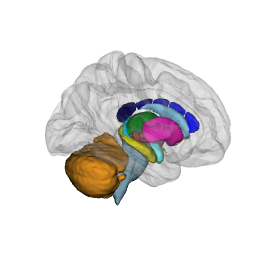
Lower opacity values make the glass brain more see-through. For subcortical atlases, 0.1-0.2 gives enough context without obscuring the structures underneath.
White matter tracts
The tracula atlas works with ggsegray()
too. Tracts render as tube meshes:
ggsegray(atlas = tracula()) |>
  add_glassbrain(opacity = 0.1) |>
  pan_camera("right lateral")

rgl::snapshot3d("img/ray-tracula.png")
rgl::close3d()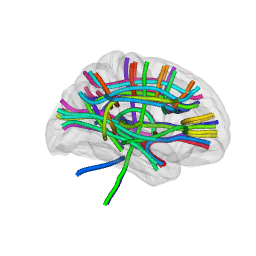
Direction-based RGB colouring with
tract_color = "orientation":
ggsegray(atlas = tracula(), tract_color = "orientation") |>
  add_glassbrain(opacity = 0.1) |>
  pan_camera("left lateral") |>
  set_background("black")

rgl::snapshot3d("img/ray-tracula-orient.png")
rgl::close3d()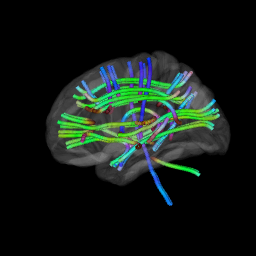
Material properties
ggsegray() accepts a material argument — a
named list of rgl material properties (see ?rgl::material3d
for the full list). This gives you control over lighting, reflection,
and shading without ggseg3d needing to wrap every option.
Glossy highlights — set
specular = "white" (default is "black" for
matte):
ggsegray(
  atlas = dk(),
  hemisphere = "left",
  material = list(specular = "white", shininess = 100)
) |>
  pan_camera("left lateral")

rgl::snapshot3d("img/ray-glossy.png")
rgl::close3d()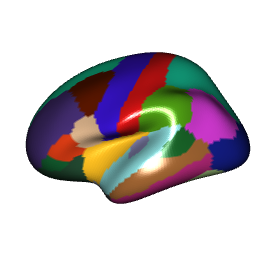
Flat colours (no lighting) — set
lit = FALSE to disable all shading. Every vertex renders at
its exact assigned colour. Essential for mask extraction where shadows
would contaminate the output:
highlight <- tibble(
  region = "precentral",
  highlight = "#FF0000"
)

ggsegray(
  .data = highlight,
  atlas = dk(),
  hemisphere = "left",
  colour_by = "highlight",
  na_colour = "#FFFFFF",
  material = list(lit = FALSE)
) |>
  pan_camera("left lateral") |>
  set_background("white")

rgl::snapshot3d("img/ray-flat.png")
rgl::close3d()
Wireframe — set front = "lines" for a
wireframe view of the mesh geometry:
ggsegray(
  atlas = dk(),
  hemisphere = "left",
  material = list(front = "lines")
) |>
  pan_camera("left lateral")

rgl::snapshot3d("img/ray-wireframe.png")
rgl::close3d()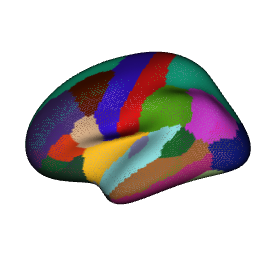
Any property accepted by rgl::material3d() can go in the
material list — ambient,
emission, smooth, alpha,
lwd, and more.
Going further
Everything below works on any rgl scene produced by
ggsegray(). Some use rayshader for rendering, others are
plain rgl.
Depth of field
Depth of field blurs regions away from a focal point, pulling
attention to a specific structure. render_depth() applies
this as a post-processing step on a snapshot:
ggsegray(
  .data = some_data,
  atlas = dk(),
  colour_by = "p",
  hemisphere = "left"
) |>
  pan_camera("left lateral")

rayshader::render_depth(
  filename = "depth_of_field.png",
  focus = 0.5,
  focallength = 200,
  fstop = 4,
  width = 600,
  height = 450
)
rgl::close3d()
focus (0-1) controls where the focal plane sits in the
depth buffer. focallength and fstop control
the strength of the blur — lower f-stop means shallower depth of field,
just like a real camera lens.
Adding labels
Place text labels directly in the 3D scene with
rgl::text3d():
ggsegray(atlas = dk(), hemisphere = "left") |>
  pan_camera("left lateral")

rgl::text3d(x = -45, y = 10, z = 55, text = "precentral", cex = 0.8)

rgl::snapshot3d("labelled.png")
rgl::close3d()
Camera animation
rgl::movie3d() spins the camera around the scene and
writes frames to a GIF — handy for conference talks or supplementary
materials:
ggsegray(
  .data = some_data,
  atlas = dk(),
  colour_by = "p",
  hemisphere = "left"
) |>
  pan_camera("left lateral")

rgl::movie3d(
  rgl::spin3d(axis = c(0, 1, 0), rpm = 10),
  duration = 3,
  dir = tempdir(),
  movie = "brain_spin",
  type = "gif",
  clean = TRUE
)
rgl::close3d()
Adjust duration and rpm to control length
and speed. For higher quality, use
rayshader::render_movie() which ray-traces each frame:
rayshader::render_movie(
  filename = "brain_rotate.mp4",
  frames = 360,
  fps = 30,
  zoom = 0.8,
  phi = 30
)
Combining views
For multi-panel figures, render each view separately and stitch them together with magick:
library(magick)

views <- c("left lateral", "left medial", "right lateral", "right medial")
files <- paste0("panel_", gsub(" ", "_", views, fixed = TRUE), ".png")

for (i in seq_along(views)) {
  hemi <- if (grepl("left", views[i], fixed = TRUE)) "left" else "right"

  ggsegray(
    .data = some_data,
    atlas = dk(),
    colour_by = "p",
    hemisphere = hemi
  ) |>
    pan_camera(views[i]) |>
    set_background("white")

  rayshader::render_highquality(
    filename = files[i],
    samples = 256,
    width = 800,
    height = 600
  )

  rgl::close3d()
}

panels <- image_read(files)
combined <- image_montage(panels, geometry = "800x600", tile = "2x2")
image_write(combined, "figure_all_views.png")

file.remove(files)
Workflow summary
A typical publication workflow:
-
Explore interactively with
ggseg3d()in the htmlwidget viewer -
Switch to
ggsegray()once you have settled on atlas, data, and colour scheme -
Draft with
rgl::snapshot3d()to iterate on camera angle and lighting -
Render with
render_highquality()for the final figure - Combine panels with magick if needed